View Categories

Notifications

FLEETA provides real-time notifications to help you stay informed about important dashcam events.

What Are Notifications? #

Notifications are sent when the following events occur:

  • Impact detected while driving or parked
  • Parking mode activation
  • Motion detected in parking mode
  • Camera cloud connection / disconnection
  • Driver fatigue alert

Notifications can be received through the following channels:

  • FLEETA App (push notifications)
  • Web Viewer (Notification Center)
  • Email (for Owner and Admin accounts)

How to Set Up Notifications #

To receive notifications properly, configure settings in two places:

  • Dashcam-level: Select which event types to be notified about for each dashcam.
  • Web Viewer or App: Enable push notifications on your device or browser.
2-1. Notification Settings by Dash Cam #
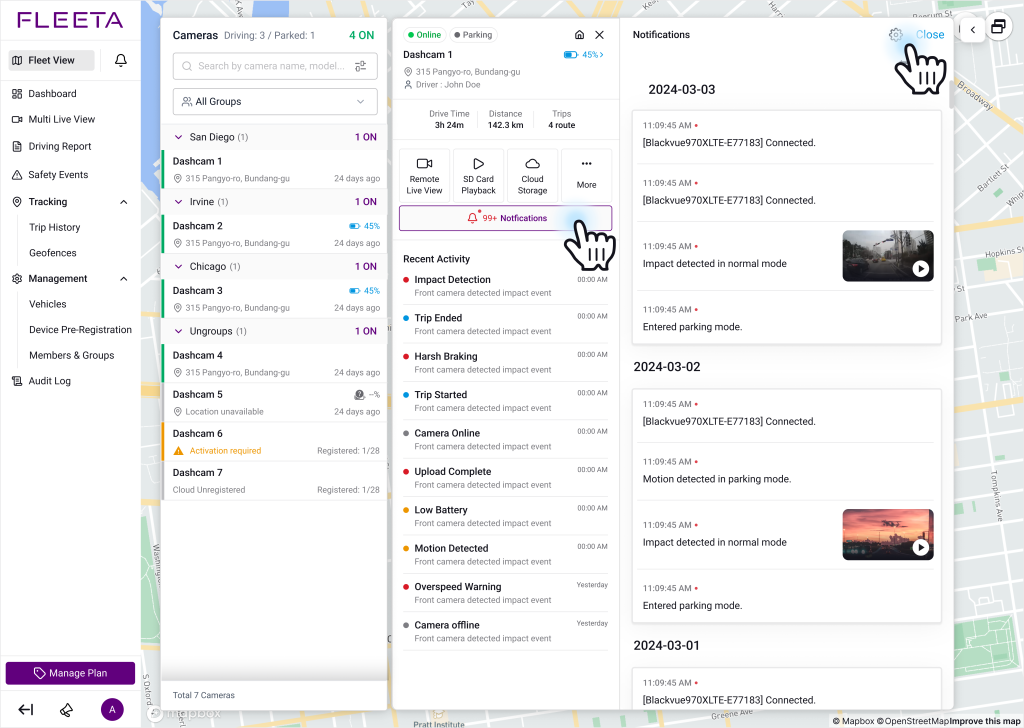
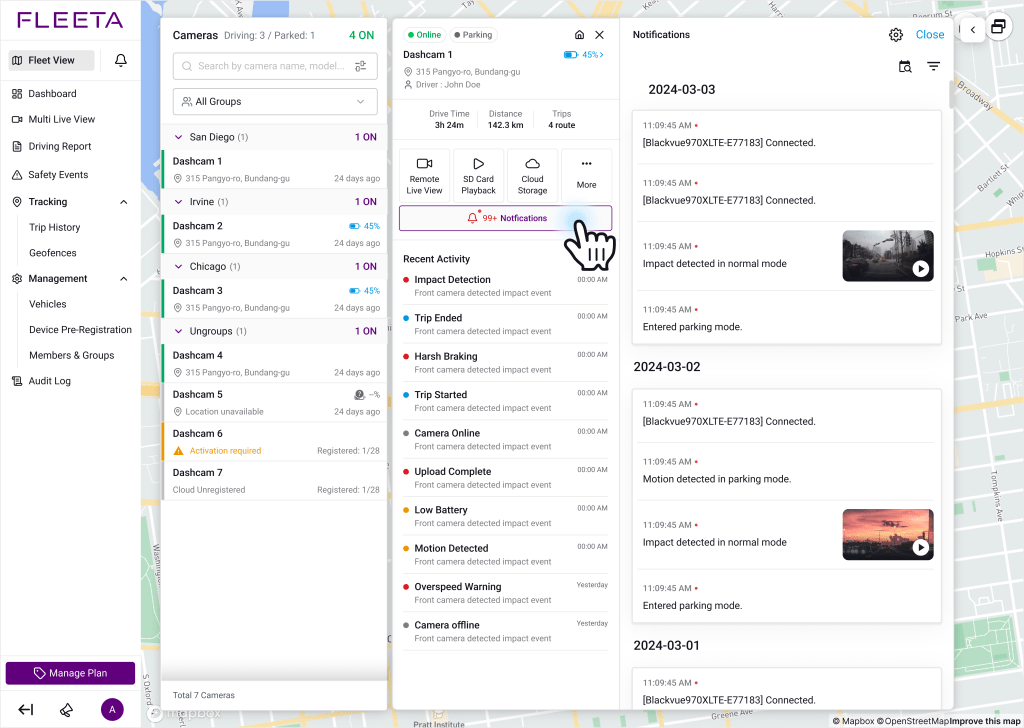
  1. Tap Notifications on the camera card you want to configure.
  2. Tap the gear icon to choose the event types and conditions.
2-2. App & Web Viewer Notification Settings #

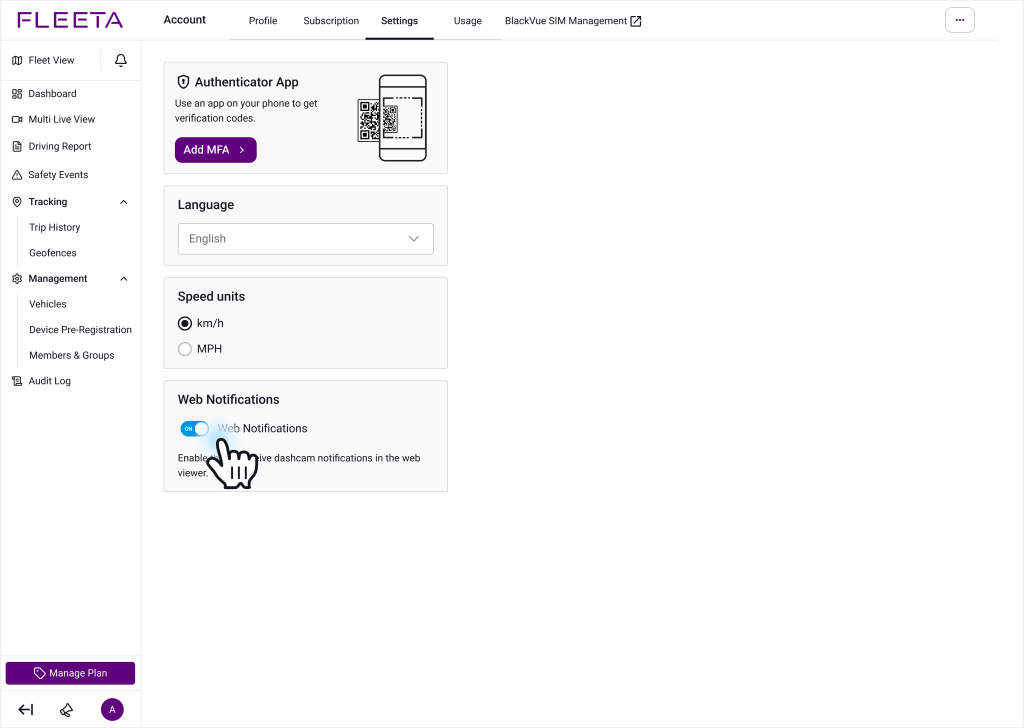
WebViewer

  1. Click the account button at the bottom of the sidebar.
  2.  Click the Subscription button.
  3. Toggle Web Notifications to ON to enable browser alerts.

App

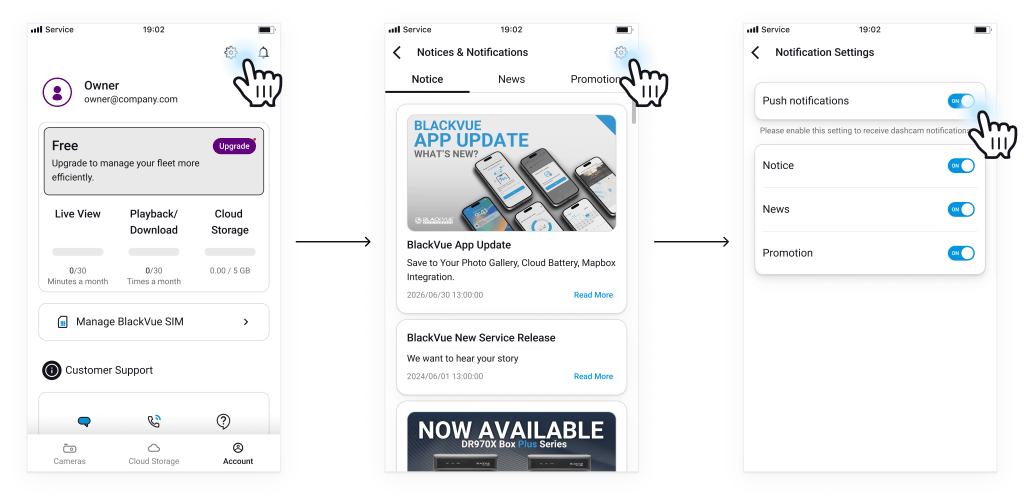
  1. Go to the Account tab and tap the alarm icon button.
  2. Tap the gear icon and turn on Push Notifications.
  3. Allow notification permissions in your mobile OS when prompted.

How to View Notifications #

FLEETA offers two ways to view notifications:

3-1. Notification Center #

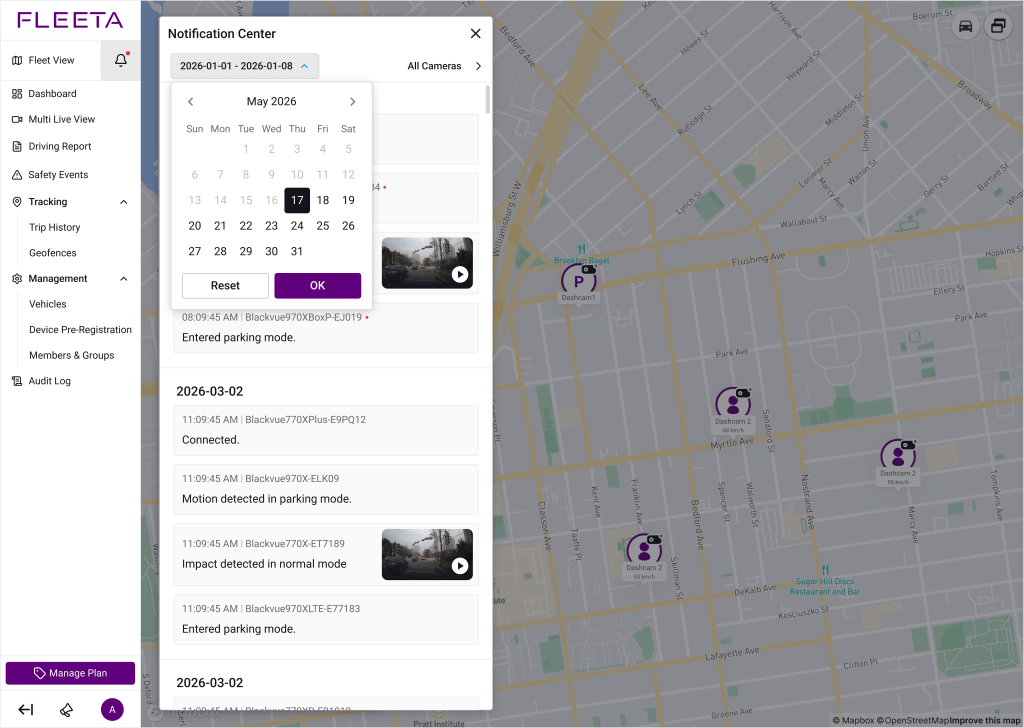
Click the bell icon (🔔) in the top navigation bar to open the Notification Center. The Notification Center displays events from all Cloud-connected cameras in your fleet.

Date Filter

  • Click the date range selector to filter by period.
  • Default: Last 7 days / Maximum: 31 days

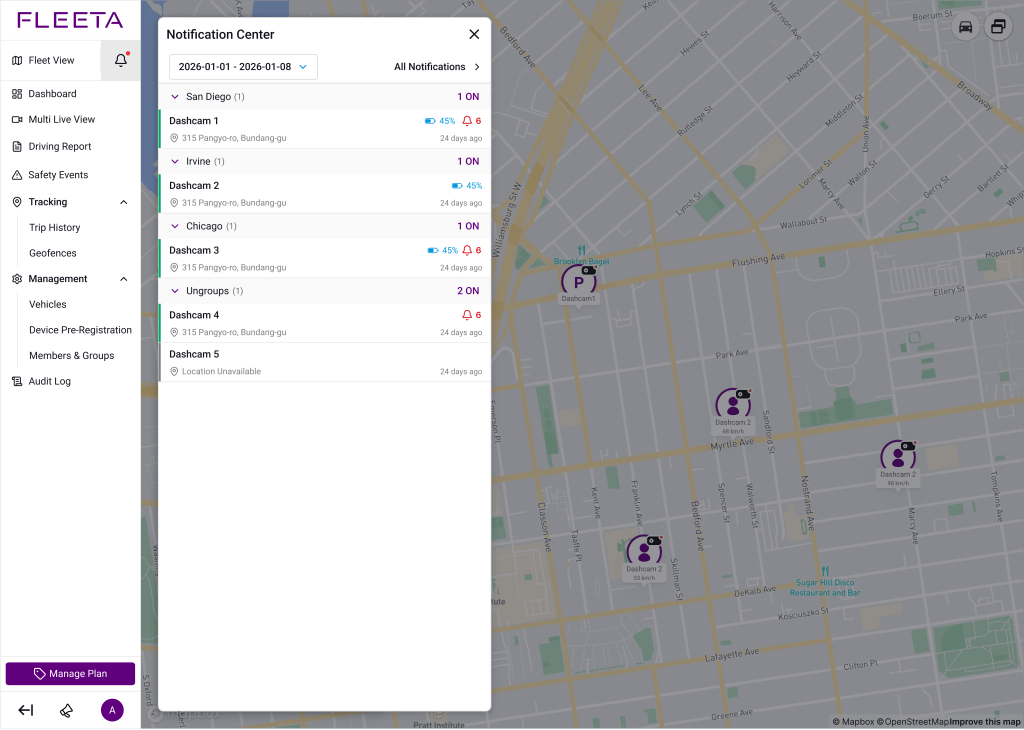
Group/Camera Filter

  • Click All Cameras to filter by group or individual camera.
  • Click a group header to expand or collapse its camera list.
  • Cameras with Activation Required status are excluded.
3-2.Camera-Level Notifications (Preview) #
  • Click on a camera in the Fleet View list to open the Preview panel.
  • Click the Notifications button to display that camera’s notification history on the right side of the screen.

Notification Icons #

In the Group/Camera filter view, each camera row shows a notification status indicator:

Icon

Meaning

Unread / new notifications exist

All notifications have been checked, or no new alerts

Notification Actions #

When you tap a specific notification, a large thumbnail is displayed along with the following options:

  • Live View — Tap the event alert to jump directly into Live View. (Cloud-connected cameras only)
  • Playback — Once the recording is complete (usually ~1 minute after the event), tap the alert to open the saved video in Playback.

Powered by BetterDocs