

View Categories

Manging Members

The Members menu allows you to invite, view, and manage Admins and Drivers in your fleet.

Inviting a Member #

  1. Go to Members from the side navigation bar. 
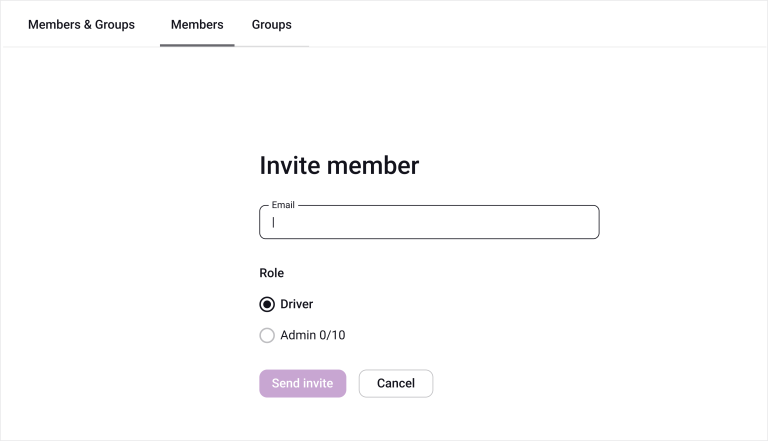
  2. Click + Invite Member. 
  3. Enter the member’s email and select a role (Admin or Driver). 

The role cannot be changed once sent. To change it, delete and re-invite the member.

  • The invited member appears with Pending status and updates once accepted.
  • Admins can also invite and remove other Admins.

Managing Pending Invitations #

You can resend or cancel pending invitations from the Members page.

  1. Go to Members from the side navigation bar. 
  2. Find a member with Pending status and click the button. 
  3. Select Resend Invitation or Cancel Invitation

Viewing Member Details & Permissions #

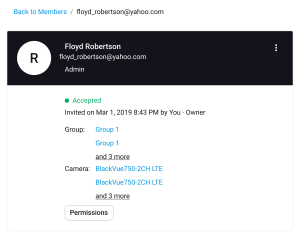
Click on a member’s name to view their details, assigned role, camera access, and activity status:

  • Admins: See the group(s) they belong to.
  • Drivers: See both group(s) and camera(s) assigned.

If the member is an Admin:

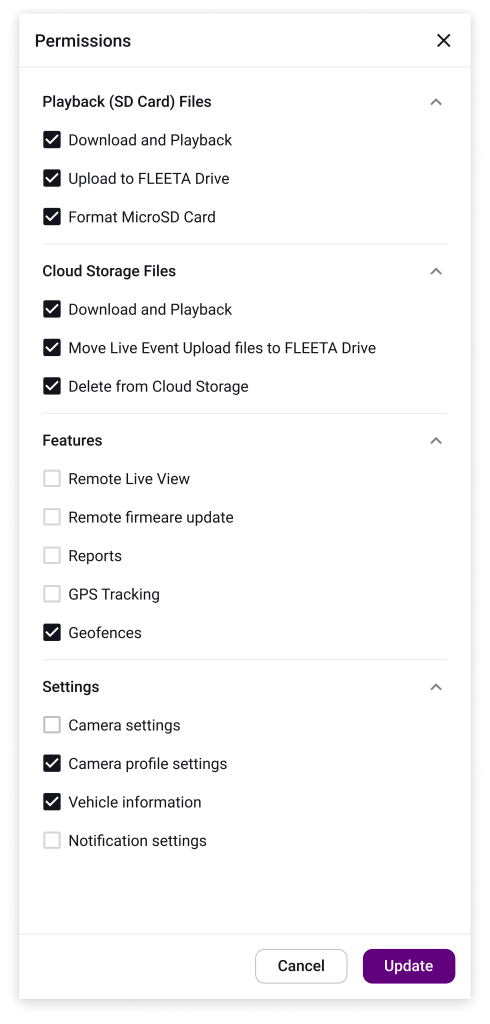
  • Click Permissions    to adjust access

Deleting Members #

Admins can remove other Admins as well as Drivers. Only the Owner can remove all members including Admins.

  1. Go to Members from the side navigation bar.
  2. Find the member you want to remove and click the button next to their name.
  3. Select Delete and confirm when prompted. 

Deleting a member will immediately revoke their access to the fleet. This action cannot be undone.

Powered by BetterDocs