View Categories

Device Pre-Registration

What is Device Pre-Registration? #

Device Pre-Registration lets you add dashcams to your FLEETA account from the Web Viewer using their serial numbers, without being near the vehicles. It is the quickest way to register multiple dashcams to the cloud at once.

  1. Register in the Web Viewer — The dashcam appears in the camera list as Pending. 
  2. Activate in the FLEETA App — Near the dashcam, complete activation to connect it to the cloud. 

Before You Start #

  • Users with Owner or Admin permissions can register dashcams. 
  • Have the following information ready. Only the serial number is required. 
    • Serial Number (PSN) (Required)
    • SIM information: APN, Username, Password (Optional) — provided by your network carrier 
    • BlackVue Battery Name (SSID) (Optional)
  • After registering, you need to activate the dashcam in the FLEETA App near the dashcam. 

Step 1. Register Dashcams in the Web Viewer #

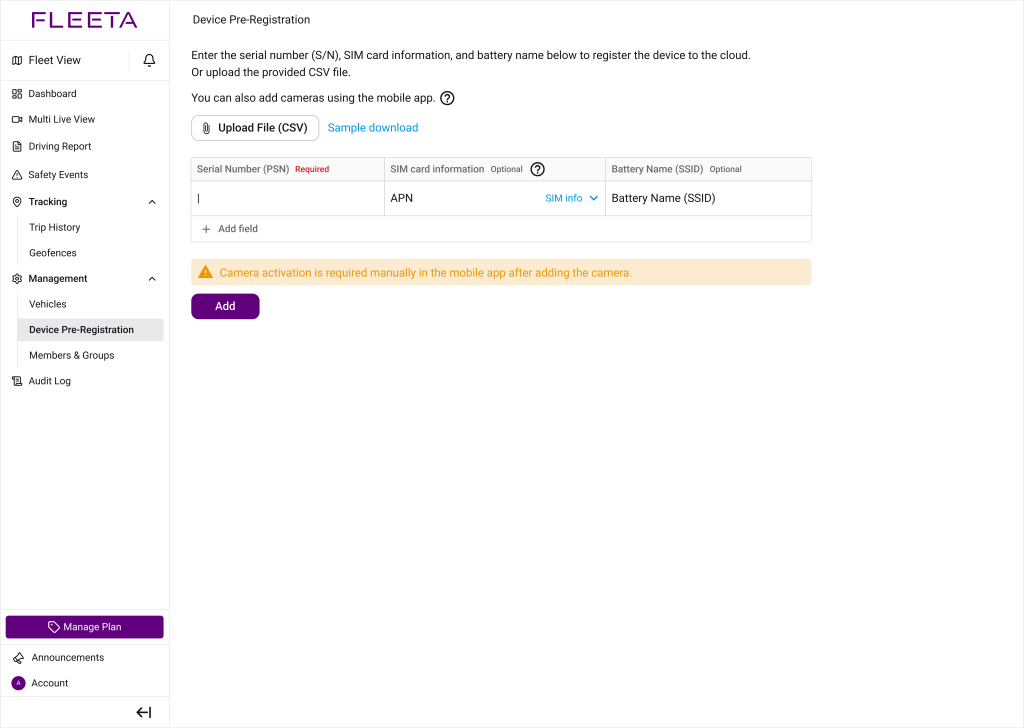
Click [Device Pre-Registration] in the side menu of the Web Viewer.

Option A: Add Individually #

🔧 Steps

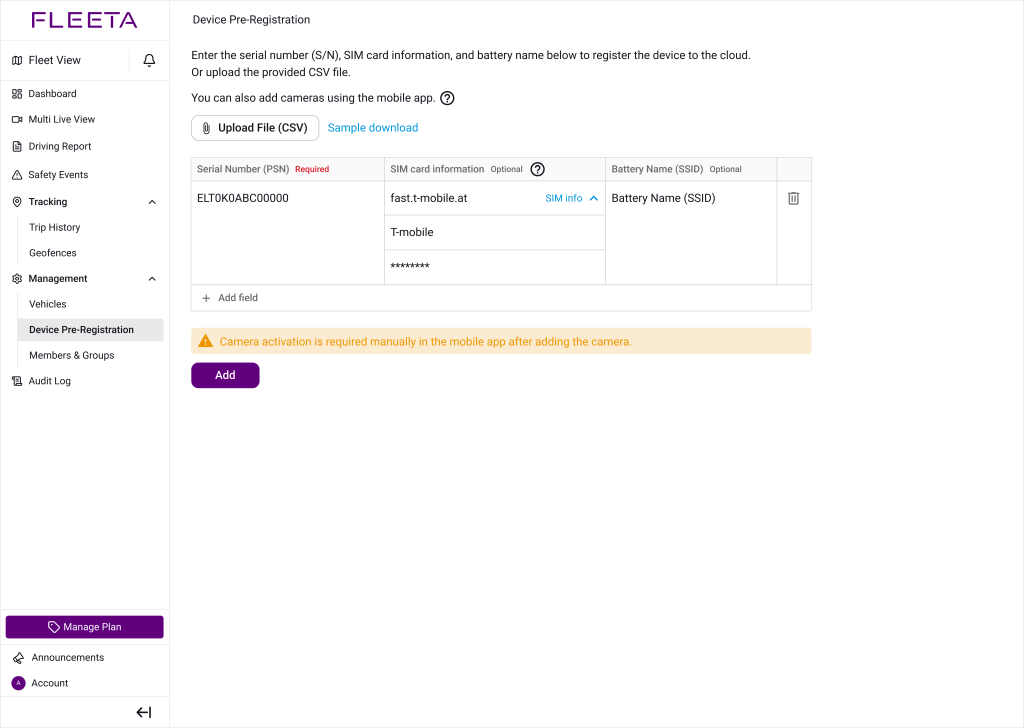
  1. Enter the Serial Number (PSN) of the dashcam. 
  2. (Optional) Click Advanced SIM Info and enter the APN, Username, and Password of your SIM card. 
  3. (Optional) If you use a BlackVue Battery, enter its Battery Name (SSID). 
  4. To register more dashcams, click + Add field and repeat steps 1–3. 
  5. Click Add and confirm the information in the pop-up. 
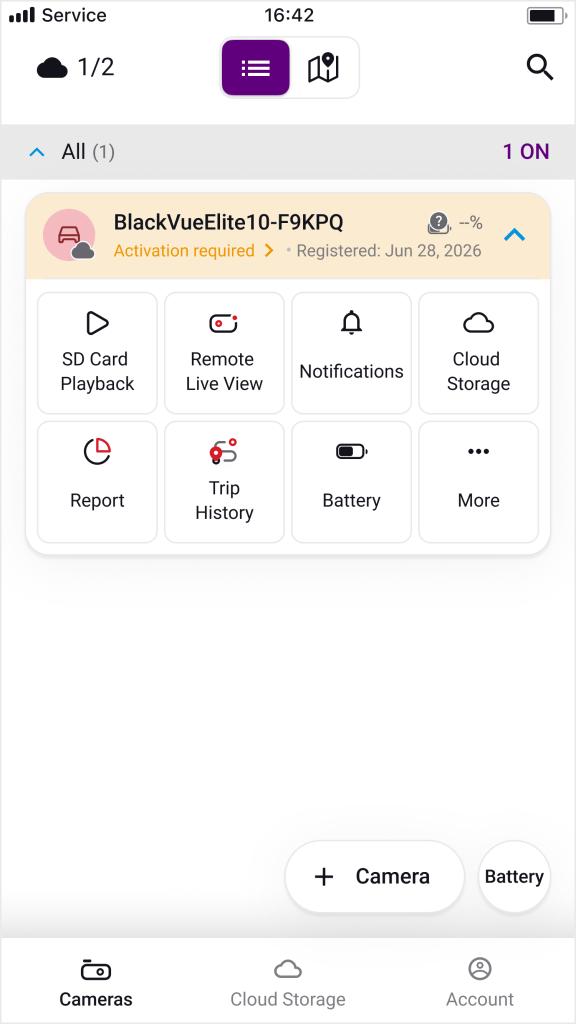
  6. The dashcam is added to the Camera List as Pending. 

Option B: Bulk Upload via CSV #

You can also register many dashcams at once with a CSV template. Click Sample Download, fill in the template, and upload it with Upload File (CSV).

Pending Cameras #

A dashcam stays Pending until it is activated in the FLEETA App.

  • A Pending camera does not connect to the cloud, and its settings cannot be changed remotely. 
  • If it is not activated within 30 days of registration, it is automatically deleted. The app shows how many days are left. 
  • To activate a Pending camera, connect it to the FLEETA App near the dashcam. See Step 2 below. 

Step 2. Activate Your Camera in the FLEETA App (Required) #

💡 Make sure the dashcam is powered on and you are near the dashcam.

🔧 Steps

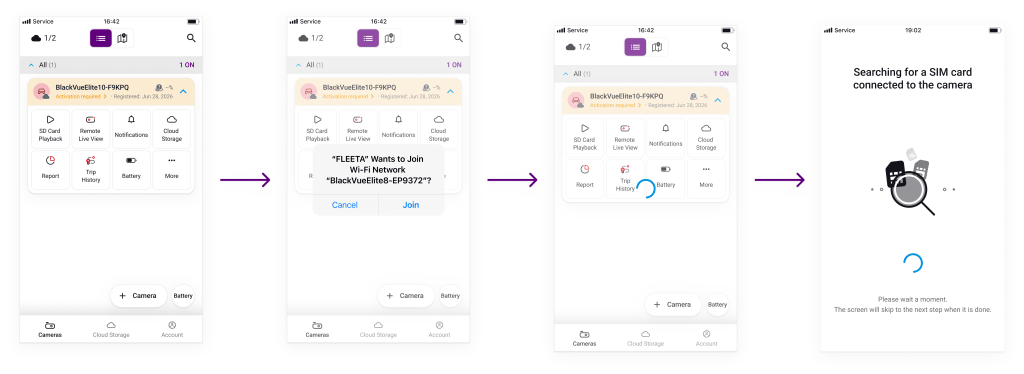
  1. Open the FLEETA App. Pending dashcams show “Activation required”. 
  2. Tap Activate on the camera card. 
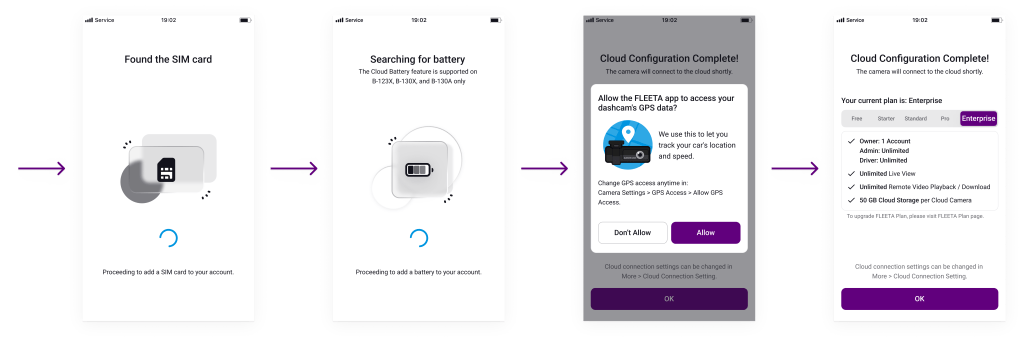
  3. The app connects to the dashcam via Wi-Fi. If your phone asks to join the dashcam’s Wi-Fi, tap Join. 
  4. The app automatically checks the SIM card and the battery. 
  5. Set the GPS permission to see vehicle location and speed. 
  6. When “Cloud Configuration Complete!” appears, tap OK. The dashcam connects to the cloud. 

Powered by BetterDocs