Table of Contents
 Steps
Steps
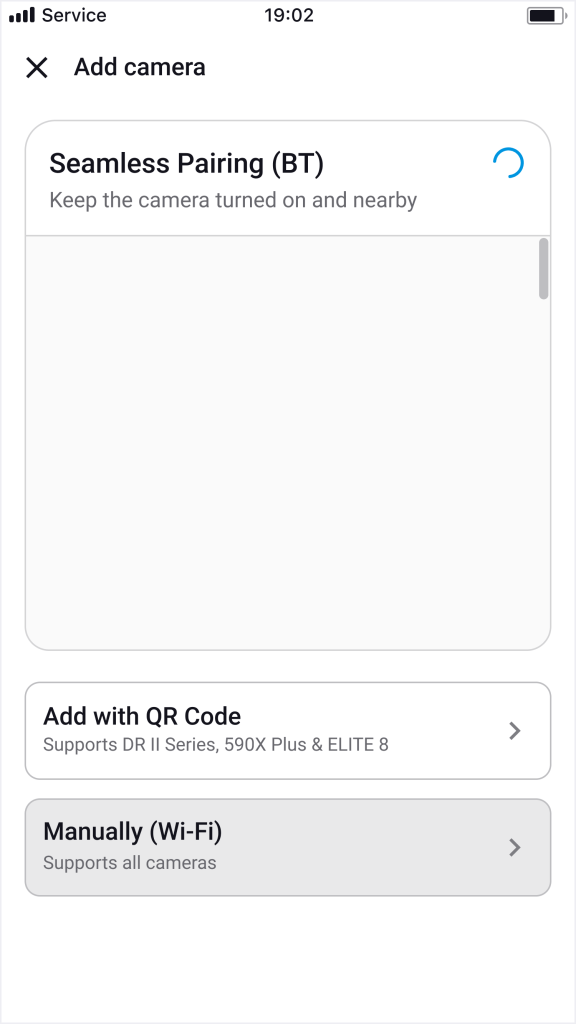
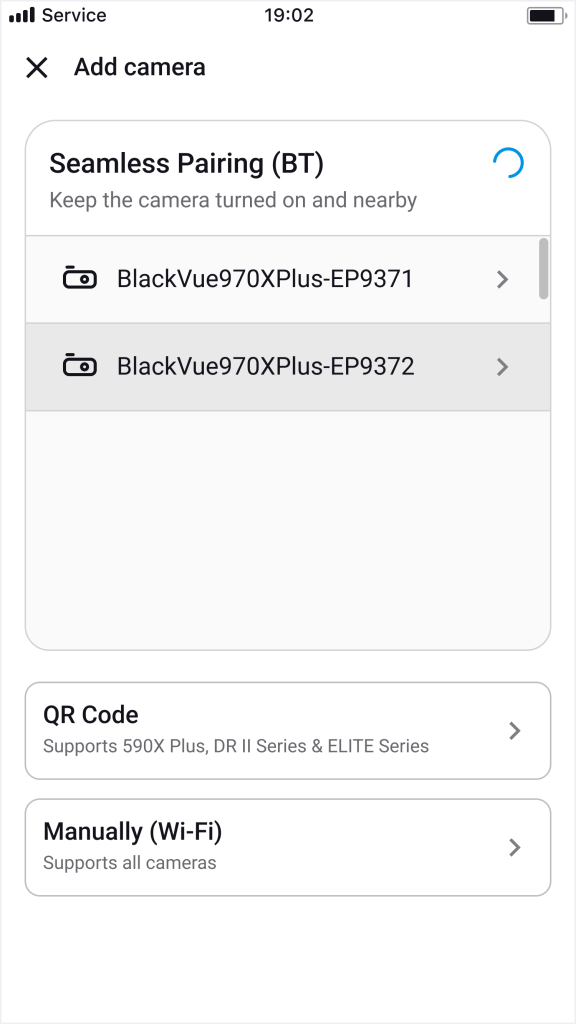
- Open the FLEETA app and tap the “+ Camera” button.
- Make sure your smartphone’s Bluetooth is enabled.
- Ensure that the dashcam is powered on and nearby.
- Select your camera from the Seamless Pairing (BT) list.
- Follow the on-screen instructions to verify the camera by placing your hand on the touch sensor.
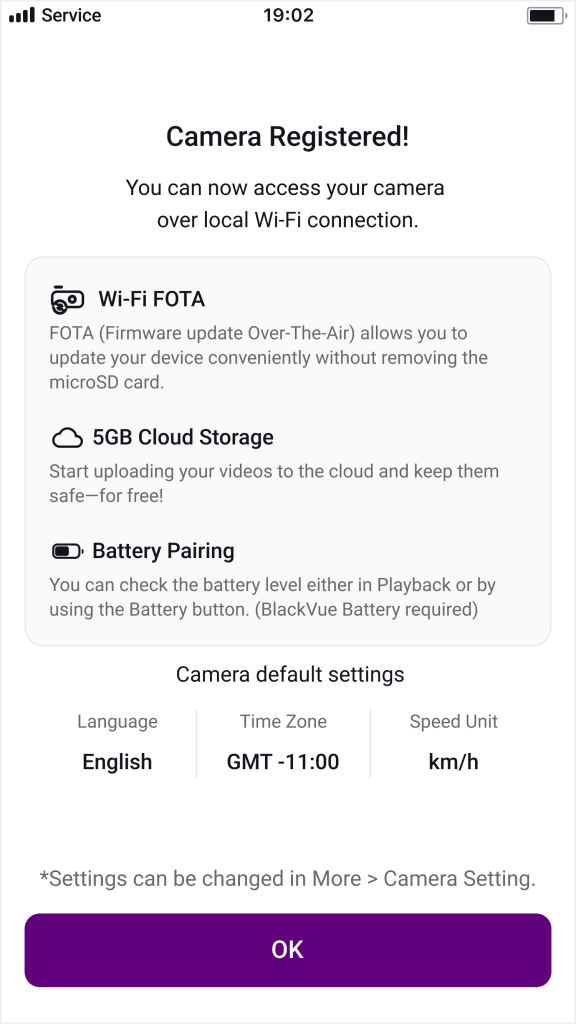
- Once recognized, the camera will be automatically registered.
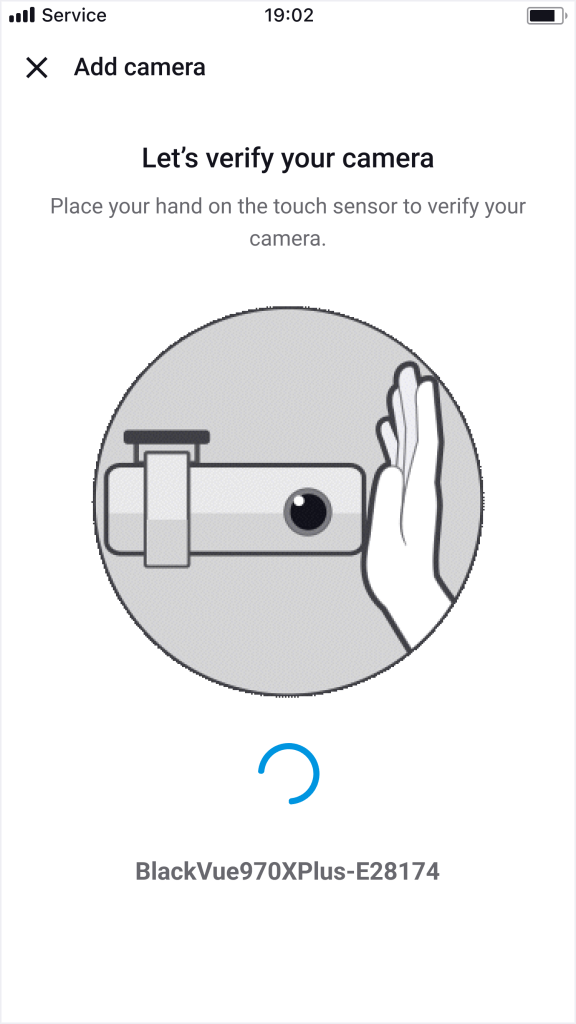
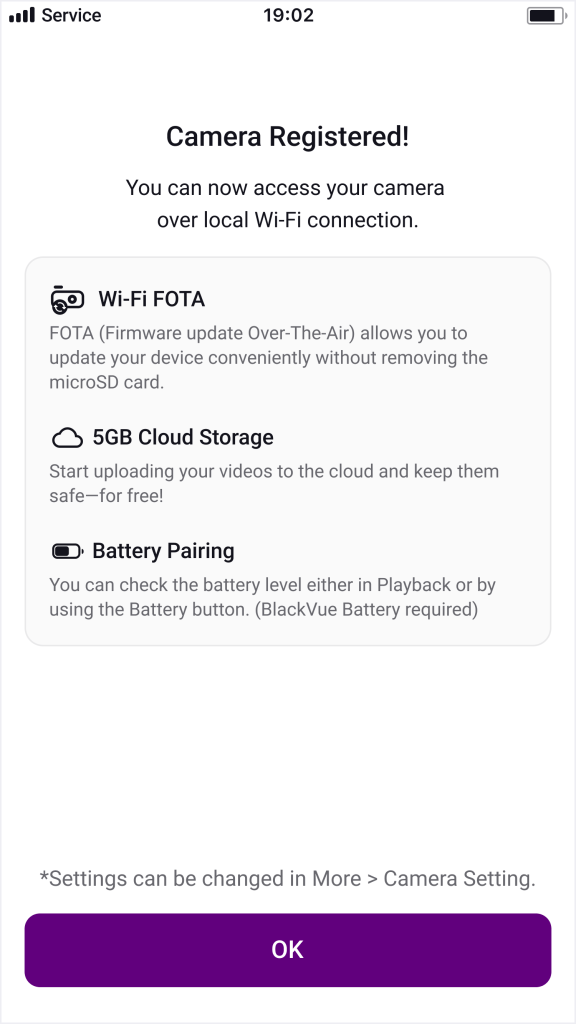
 some models are not supported: DR590W-1CH/2CH, DR590X-1CH/2CH, DR650GW-1CH/2CH, DR650S-1CH/2CH, DR750S-1CH/2CH, DR900S-1CH/2CH, DR590X Plus-1CH/2CH
Steps
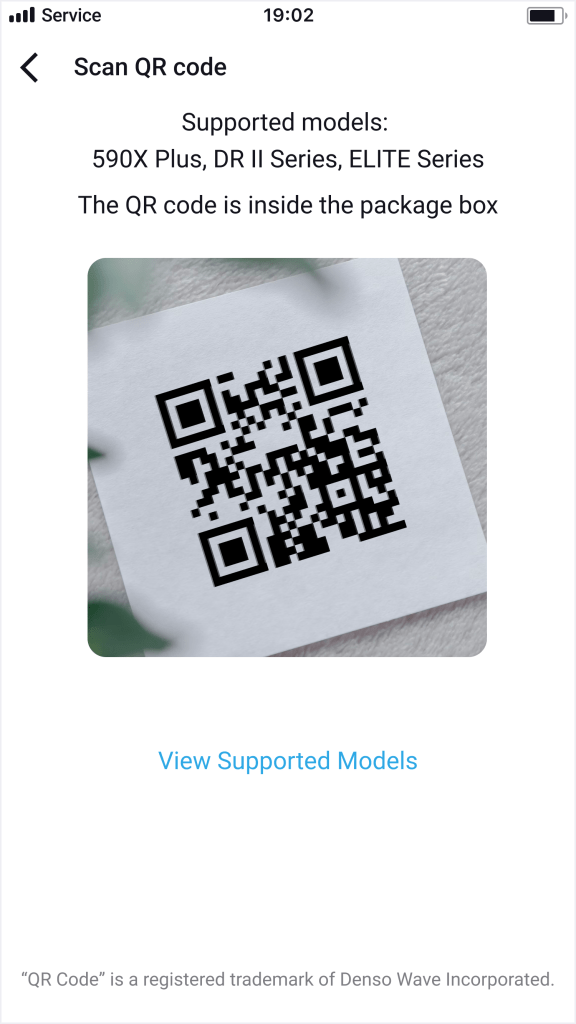
- Select “Add with QR Code”.
- Allow camera access when prompted (first-time users).
- Scan the QR code attached to the camera packaging box.
- Once recognized, the camera will be automatically registered.
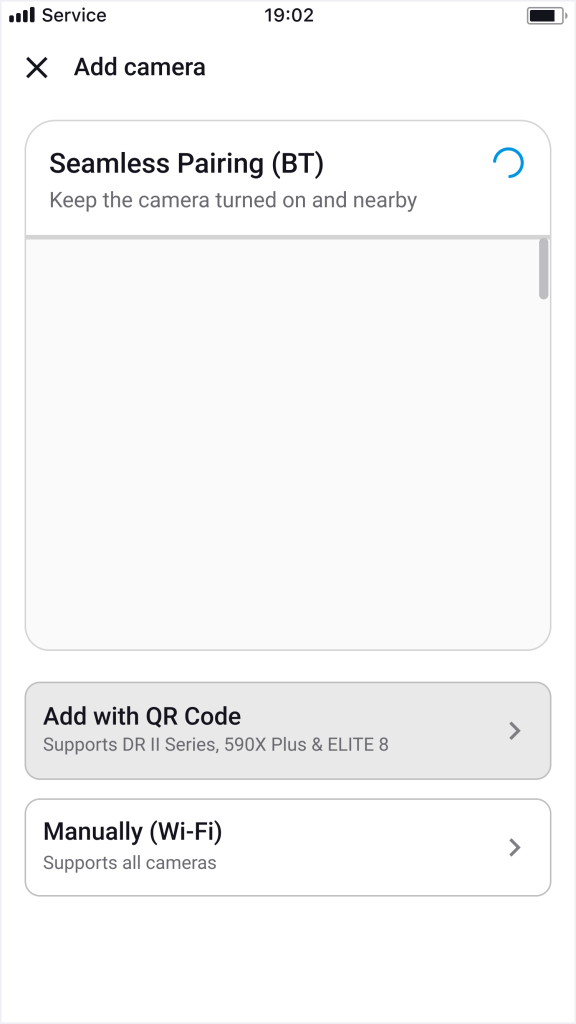
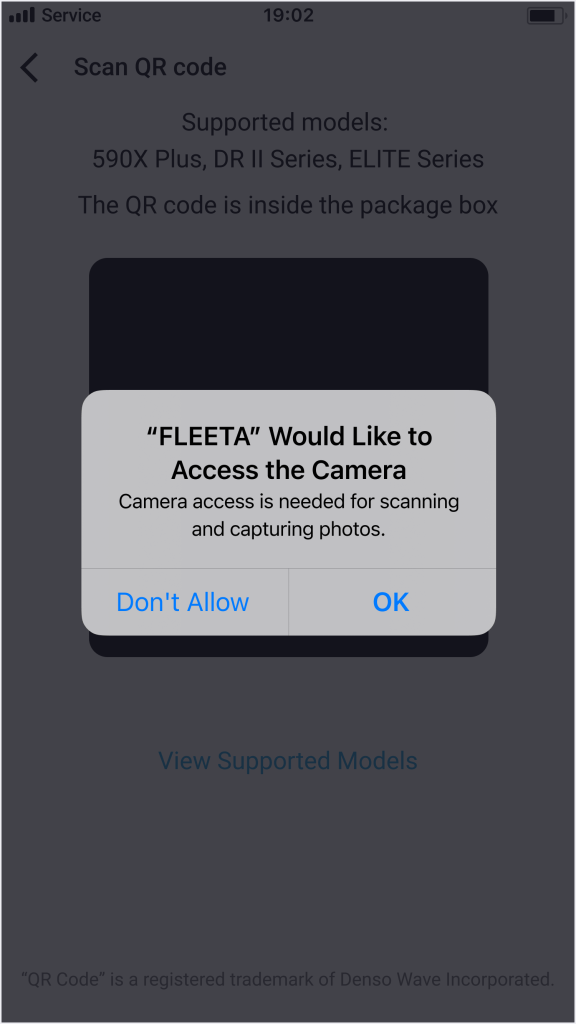
Steps
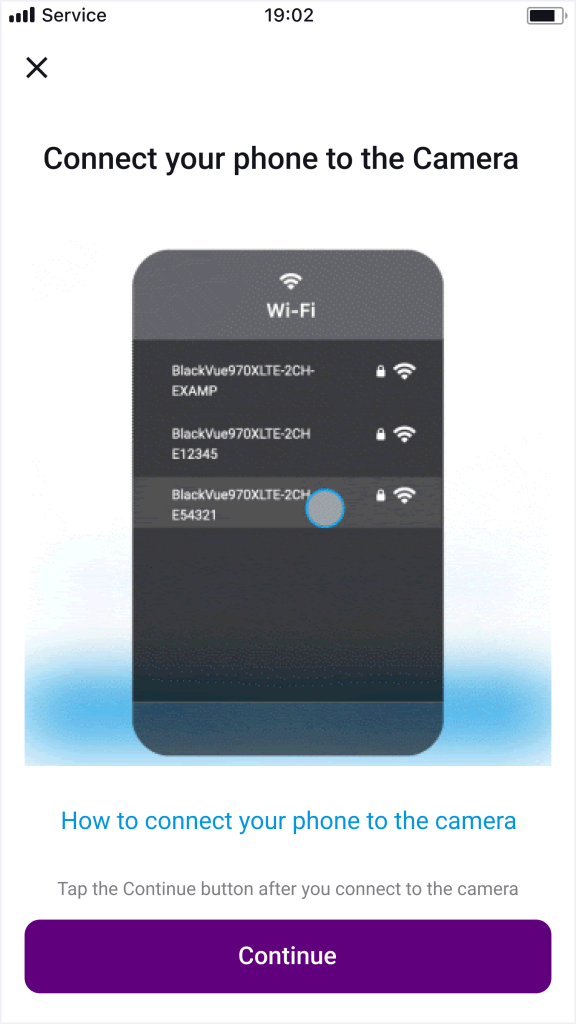
- Select “Manually (Wi-Fi)”.
- On your smartphone, go to OS Settings > Wi-Fi Settings, tap the dashcam’s Wi-Fi SSID, and enter the password.
- Connect your smartphone to the camera’s Wi-Fi network.
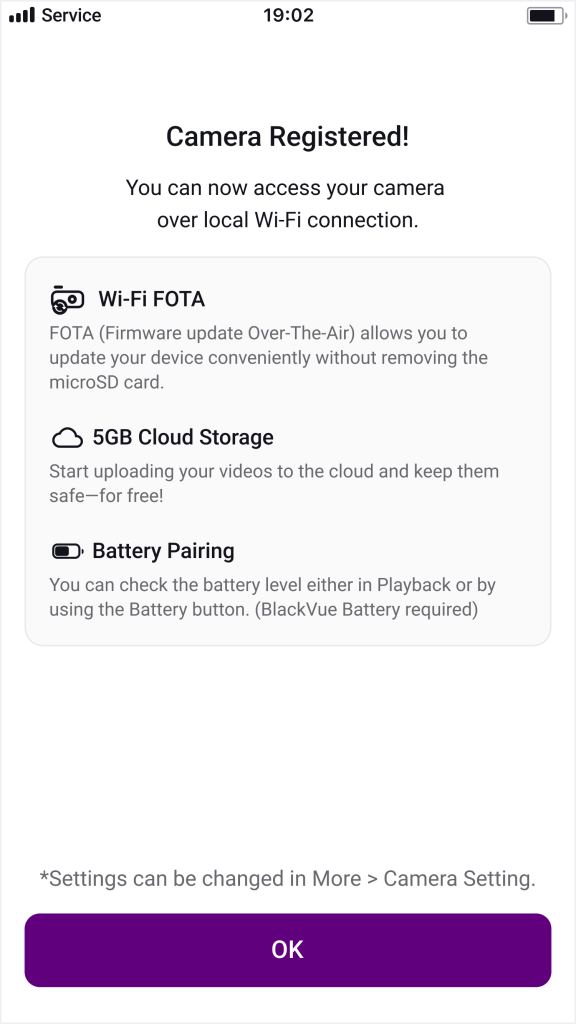
- Once connected, the camera will be added to the app.
- Return to the app after reconnecting your phone to the internet (Wi-Fi).
 Note: The camera’s SSID and password are printed on the device itself or on its packaging box.