View Categories

➕How to Add a BlackVue Camera

You can add a camera to the BlackVue app using one of the following three methods:

  • Seamless Pairing (BT)
  • QR Code Scan
  • Manually (Wi-Fi)

Please refer to the step-by-step instructions below for each method.

Seamless Pairing (BT) #

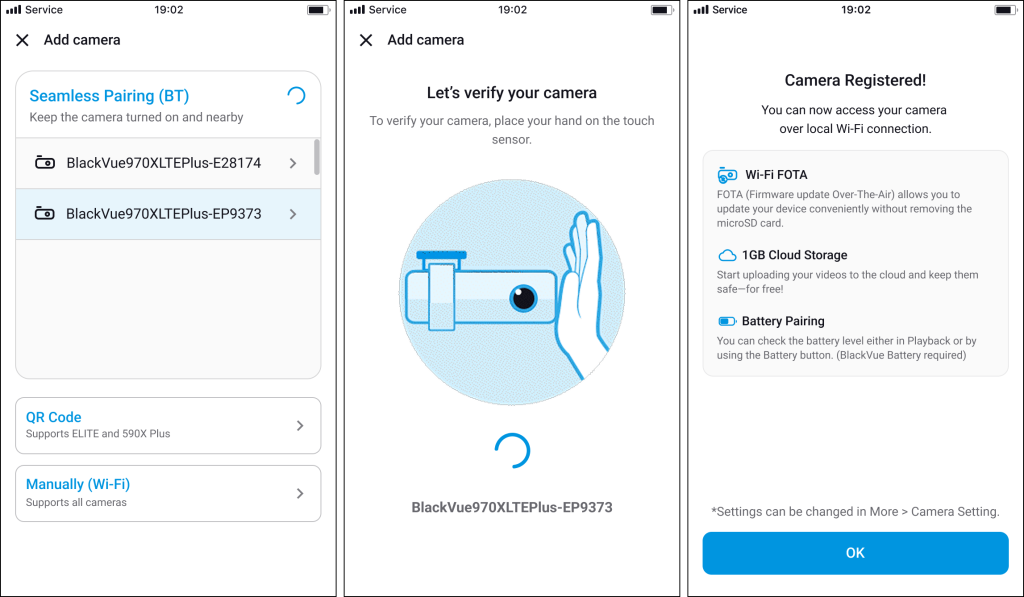
This is a simple registration method using your smartphone’s Bluetooth.

Supported models: All models

🔧 Steps

  1. Open the BlackVue app and tap the “+ Camera” button.
  2. Make sure your smartphone’s Bluetooth is enabled.
  3. Ensure that the dashcam is powered on and nearby.
  4. Select your camera from the Seamless Pairing (BT) list.
  5. Follow the on-screen instructions to verify the camera by placing your hand on the touch sensor.
  6. Once recognized, the camera will be automatically registered.

⚠️ some models are not supported: DR590W-1CH/2CH, DR590X-1CH/2CH, DR650GW-1CH/2CH, DR650S-1CH/2CH, DR750S-1CH/2CH, DR900S-1CH/2CH, DR590X Plus-1CH/2CH

QR Code Scan Method #

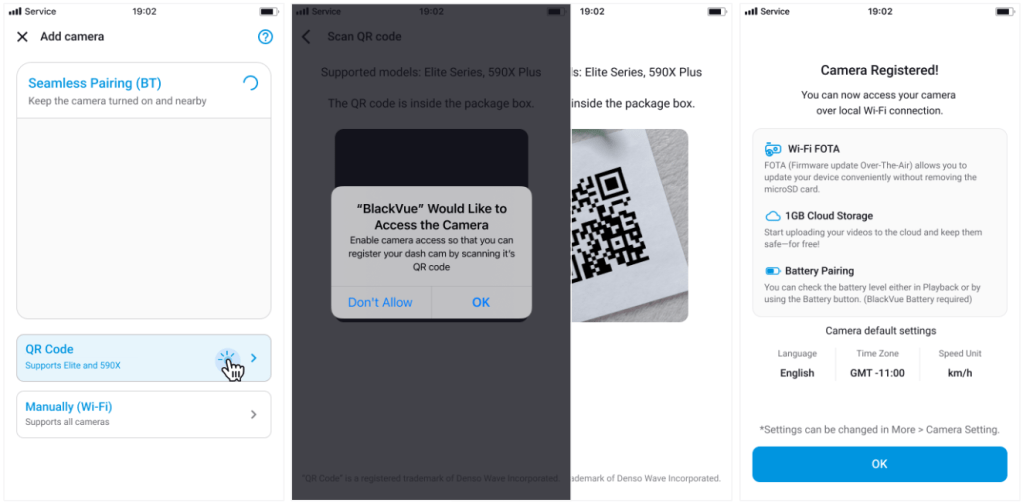
This method allows you to register the camera by scanning the QR code printed on the camera packaging.

Supported models: ELITE and 590X Plus series

🔧 Steps

  1. Select “Add with QR Code”.
  2. Allow camera access when prompted (first-time users).
  3. Scan the QR code attached to the camera packaging box.
  4. Once recognized, the camera will be automatically registered.

Note: The camera’s default settings may differ from your local time zone and language. You can change these in the Camera Settings menu.

Manual Registration (Wi-Fi) #

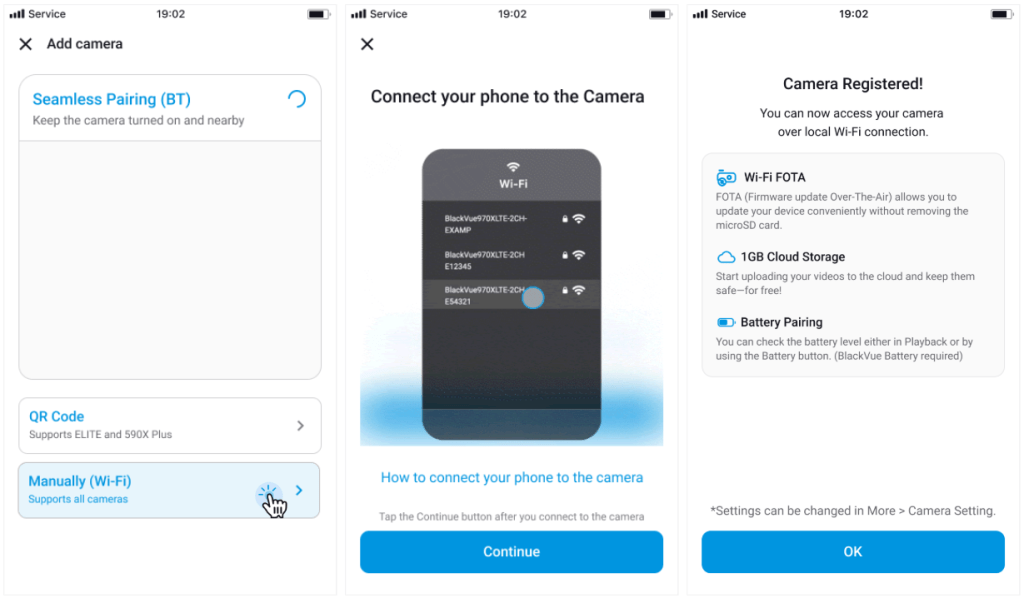
This method allows you to manually register the camera by entering its Wi-Fi information.

Supported models: All models

🔧 Steps

  1. Select “Manually (Wi-Fi)”.
  2. On your smartphone, go to OS Settings > Wi-Fi Settings, tap the dashcam’s Wi-Fi SSID, and enter the password.
  3. Connect your smartphone to the camera’s Wi-Fi network.
  4. Once connected, the camera will be added to the app.
  5. Return to the app after reconnecting your phone to the internet (Wi-Fi).

Note: The camera’s SSID and password are printed on the device itself or on its packaging box.

Powered by BetterDocs