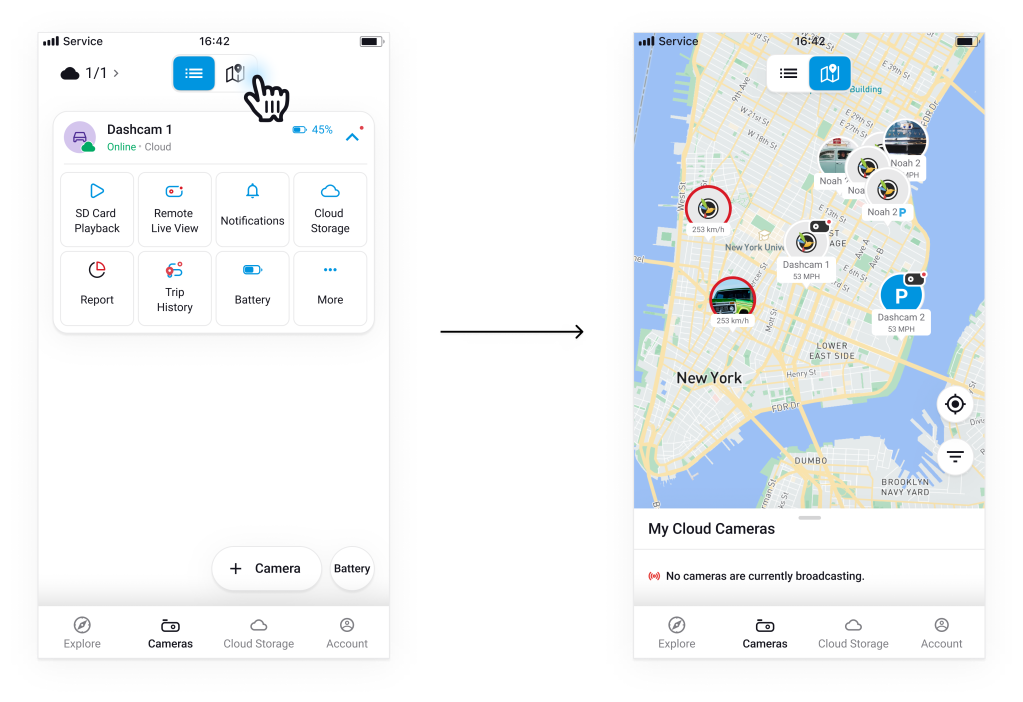
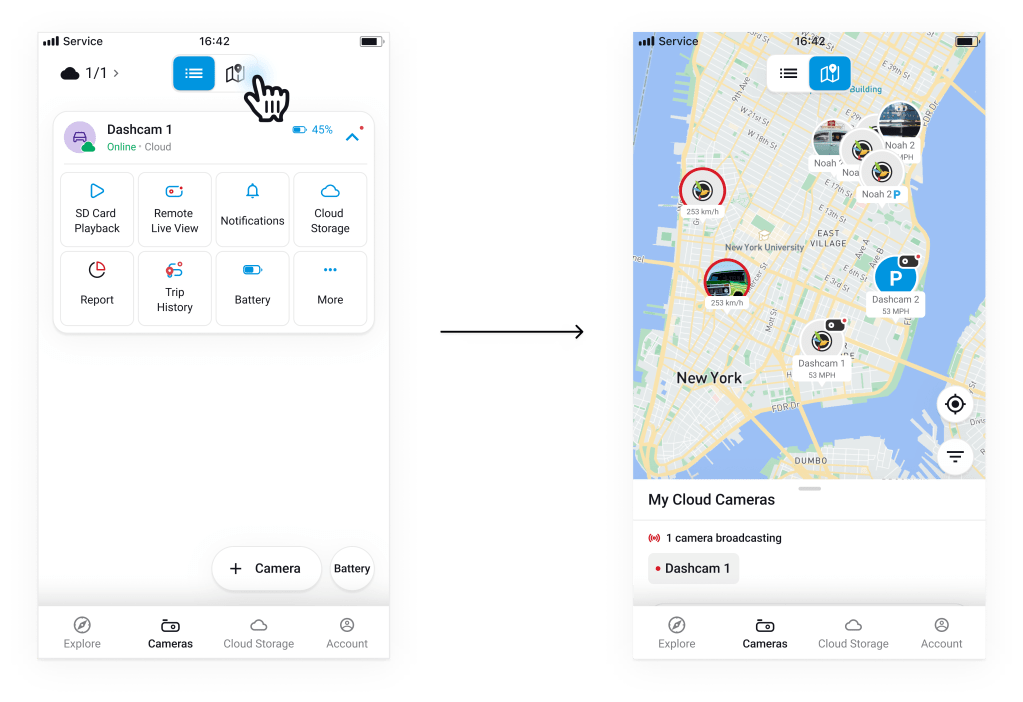
Tap the map icon at the center of the Camera List screen to open Map View.
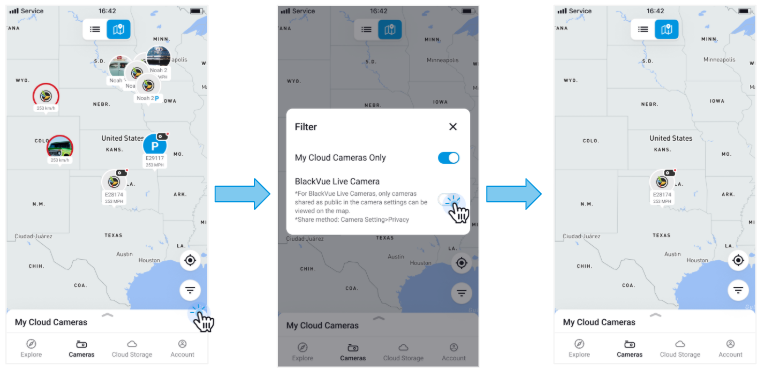
In Map View, you can see the real-time locations of your cloud-connected cameras, along with cameras of other users who have enabled location sharing.
By default, your cameras are not visible to others. (If you do not enable the Share Location setting, your camera will not appear to other users.)
To share your location publicly, go to: Camera Settings > GPS Access&Broadcast > Broadcast “ON” (If Broadcast is enabled, you can choose one of three live sharing options: 1. location only, 2. location & video, 3. location & video & audio.)
🔔 Note: Only cloud-connected cameras appear on the map. Non-cloud cameras are not shown.
Camera returns to standard list view Once broadcasting ends, the camera is removed from the live indicator and shown as a regular entry in the Camera List.
Live cameras appear in your Camera List While a camera is actively broadcasting, it appears in the My Cloud Cameras list so you can quickly identify which cameras are currently live.