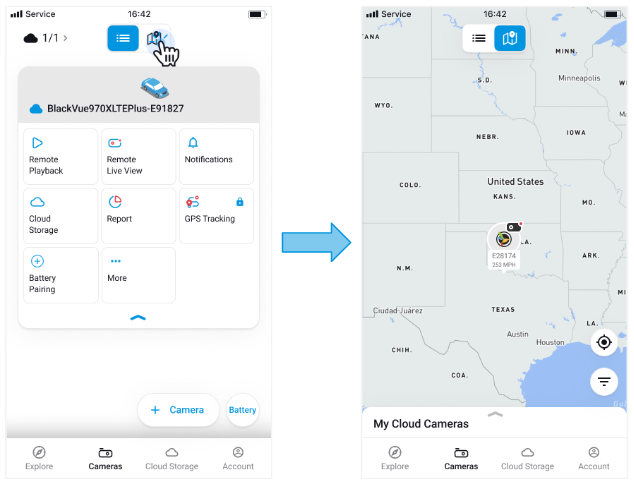
Tap the map icon at the center of the Camera List screen to open Map View.
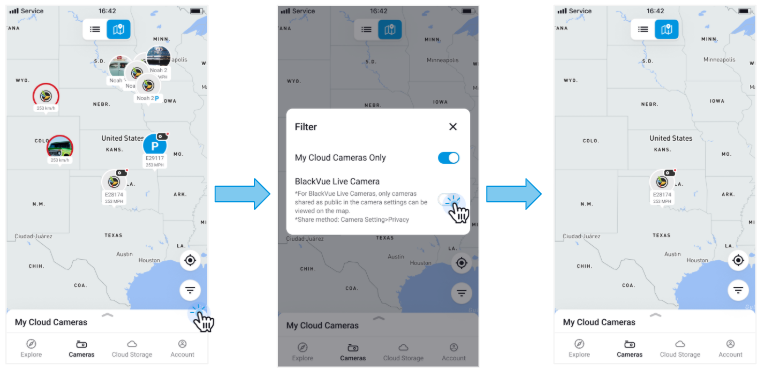
In Map View, you can see the real-time locations of your cloud-connected cameras, along with cameras of other users who have enabled location sharing.
By default, your cameras are not visible to others. (If you do not enable the Share Location setting, your camera will not appear to other users.)
To share your location publicly, go to: Camera Settings > GPS Access&Live Broadcast > Live Broadcast “ON” (If Live Broadcast is enabled, you can choose one of three live sharing options: 1. location only, 2. location & video, 3. location & video & audio.)
🔔 Note: Only cloud-connected cameras appear on the map. Non-cloud cameras are not shown.