
Note on Web Viewer’s List View:
- Cameras are displayed in a simple list format instead of expandable cards.
- This view does not support Group Cards or Group Filter.
- Clicking a camera will initiate Remote Playback, which requires the camera to be Cloud Connected.

🗸 Last Online Column #
The Last Online column has been added to the camera list in List View (Web Viewer).
This column shows the last time each dashcam was connected to the cloud. It helps identify vehicles that have been offline for a long time.
🗸 Sorting Options #
- The camera list now supports sorting by column headers.
- You can click the header of each column to change the sort order.

- Supported sort criteria:
- Camera Name: A → Z / Z → A
- Installation Date: Oldest → Newest / Newest → Oldest
- Firmware Version: Lowest → Highest / Highest → Lowest
🗸 Update Firmware on All Models #
A new Bulk Firmware Update button has been added to the top left of the List View (Web Viewer).
This feature allows you to update the firmware of all registered cloud cameras at once to the latest version.


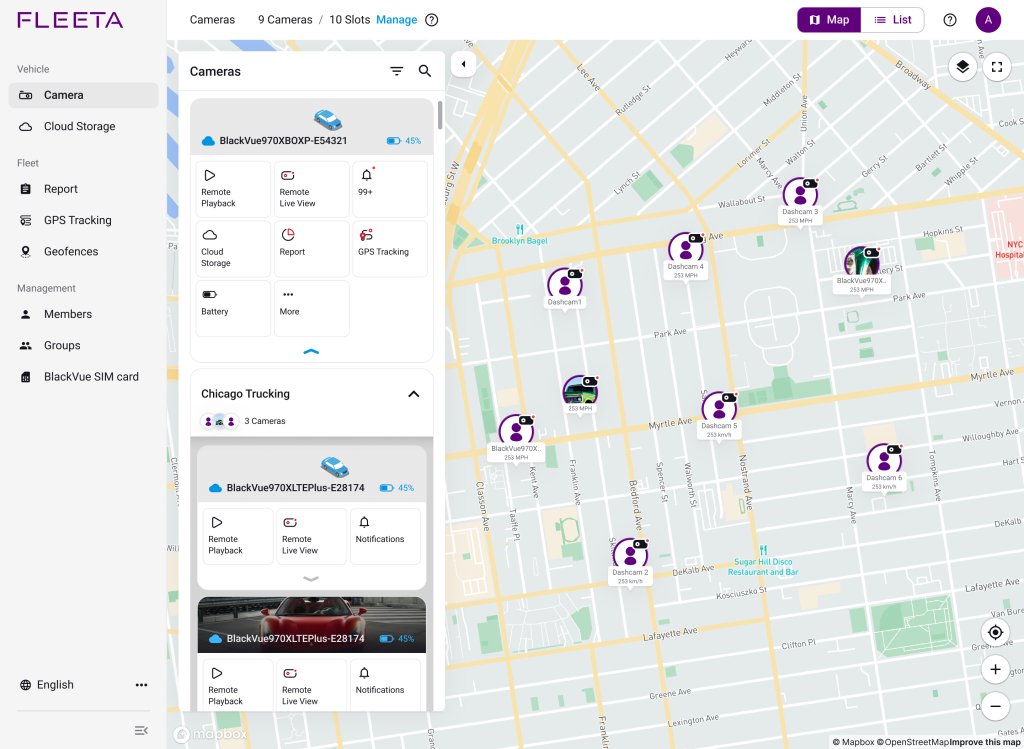
- Each camera appears as a card showing key information.
Cameras are shown with different icons depending on their connection type:
 Wi-Fi Camera icon: Indicates dashcams not registered for cloud connection
 Cloud Camera icon (sky blue): Indicates dashcams connected to the cloud
 Cloud Disconnected icon (gray): Indicates dashcams not connected to the cloud
- Cards can be expanded to reveal action buttons or collapsed for a compact view.
- Click the arrow on the bottom of the card to toggle between expanded and collapsed.
Each button works differently depending on the user’s role.

Collapsed

Expanded

Collapsed

Expanded
- If a camera belongs to a group, it is displayed inside a group card.
- Group cards can be expanded to show the cameras in the group, or collapsed for a compact view.
- Click the arrow on the right side of the group card to toggle between expanded and collapsed.


Expanded

 App
App
- Available only when groups are registered.
- You can toggle groups on/off to include or exclude them from view.
- Ungrouped cameras can also be included or excluded.
- Visible when at least one camera is registered and assigned.
- You can search by camera name or group name.

Web Viewer


